
Set up your invoice info: add your name or logo and payment details so an invoice is ready to send the first time you make one.
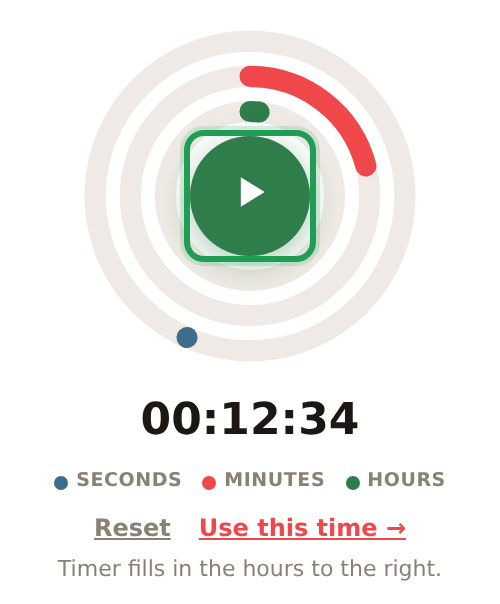
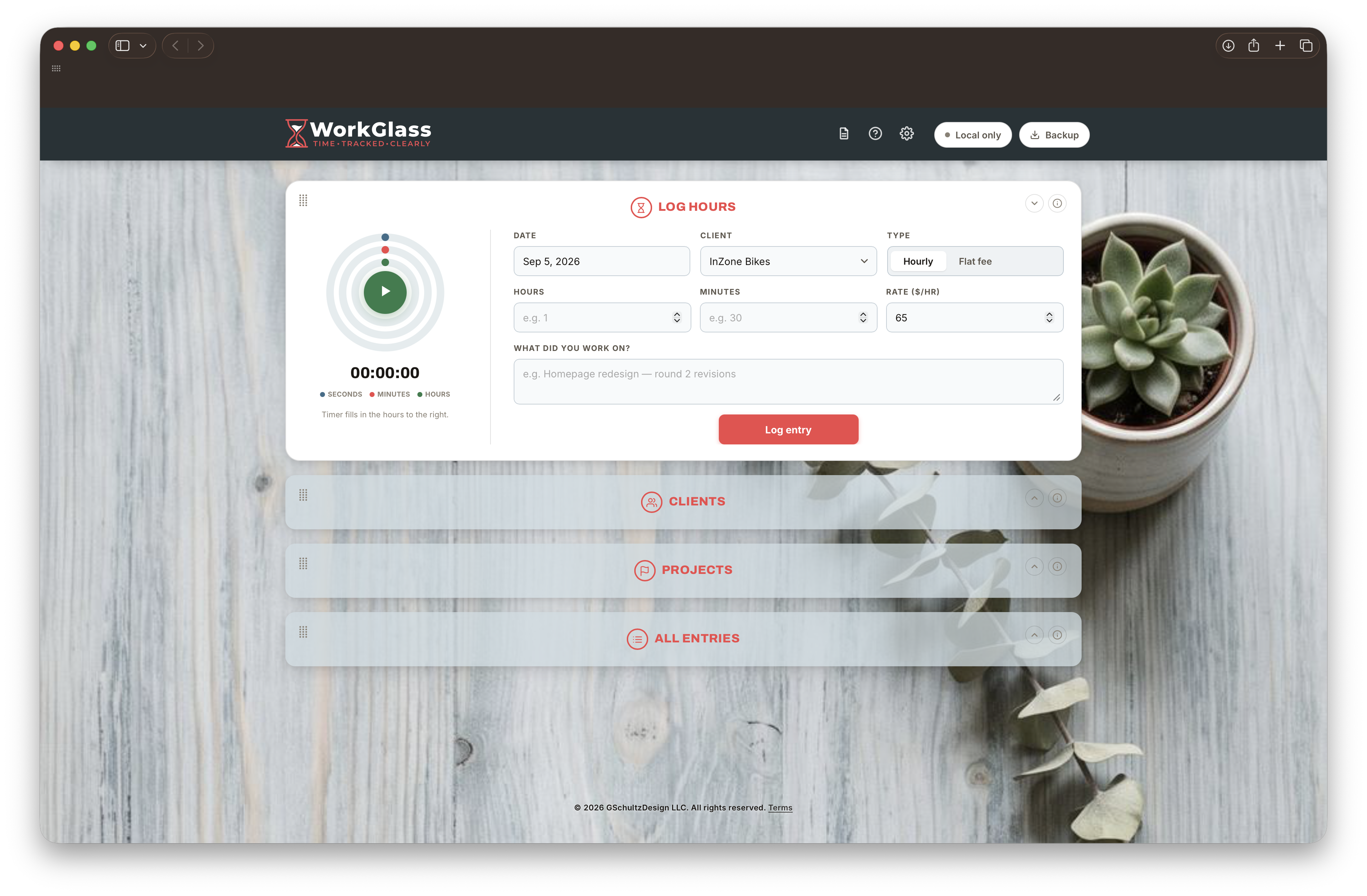
Timer fills in the hours to the right.
A few quick steps to make WorkGlass yours. Do them now and you're set for a smooth experience going forward.
Set up your invoice template. WorkGlass starts you off with a ready-to-use template called "Generic," so you can invoice right away if you need to. When you have a few minutes, open Settings (the gear icon in the header, or inside Menu on a phone) and find Invoice templates to make it your own: add your logo, or use a text header if you don't have one yet, pick your own brand colors, and fill in your payment info.
Create your first client. Add their name and hourly rate in the Clients card, then click Add client. That same tile is also where you'll invoice them later. Once you've logged some time, just click Create Invoice right on it.
Customize your dashboard. Press and hold a card's grip to drag it into the order that works for you, or click the caret to collapse any card you don't need visible. Then head to Settings → Customize to pick a background and accent color that feel like yours.
Every card on your dashboard, explained.
Press and hold the grip in the top-left corner to move this card to a new spot, or click the caret in the top-right to collapse it out of the way. Add every client you bill hours to. Each one gets its own color and hourly rate, and that color carries through the whole app: entries, invoices, everything.
Add the basics. Type a client name and their hourly rate at the top of the Clients panel, then click Add client.

Their tile appears. The colored dot is theirs everywhere in the app. Click it any time to cycle to a different color. Hours logged and total billed update automatically as you go.
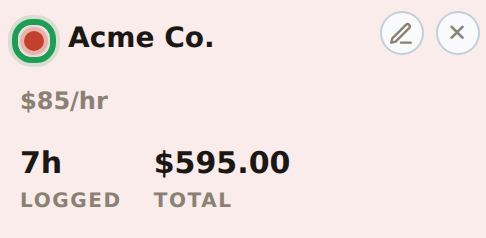
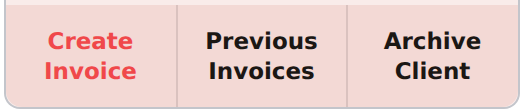
Take action right from the tile. Create Invoice bills their unbilled hours, Previous Invoices pulls up everything you've already sent them, and Archive Client collapses them into a compact line item below the cards. They're still fully there, just out of the way until a new job (or you, with Make a Card) brings the full card back.
Edit or remove a client. The pencil in the corner lets you rename them or update their rate. The × deletes them for good. Since that also removes every entry ever logged for them, it asks you to confirm twice.

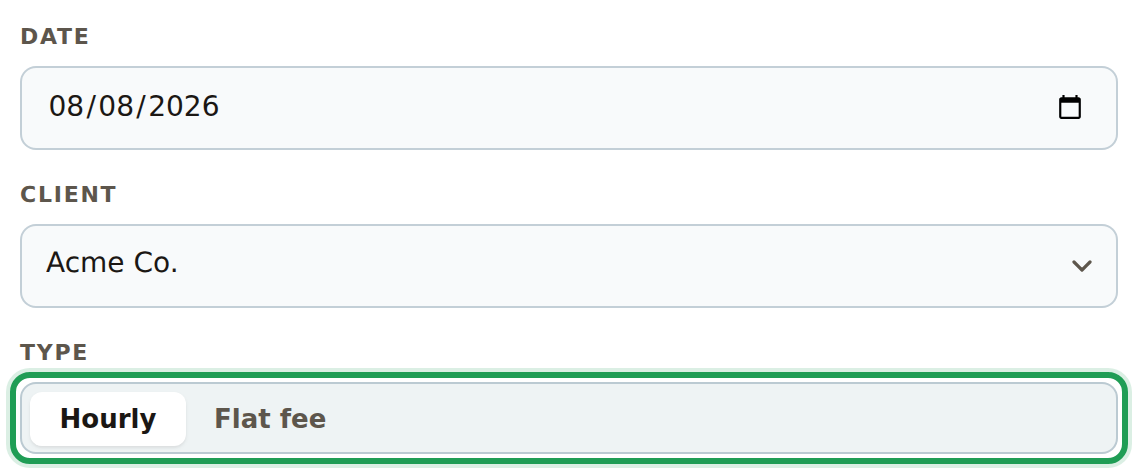
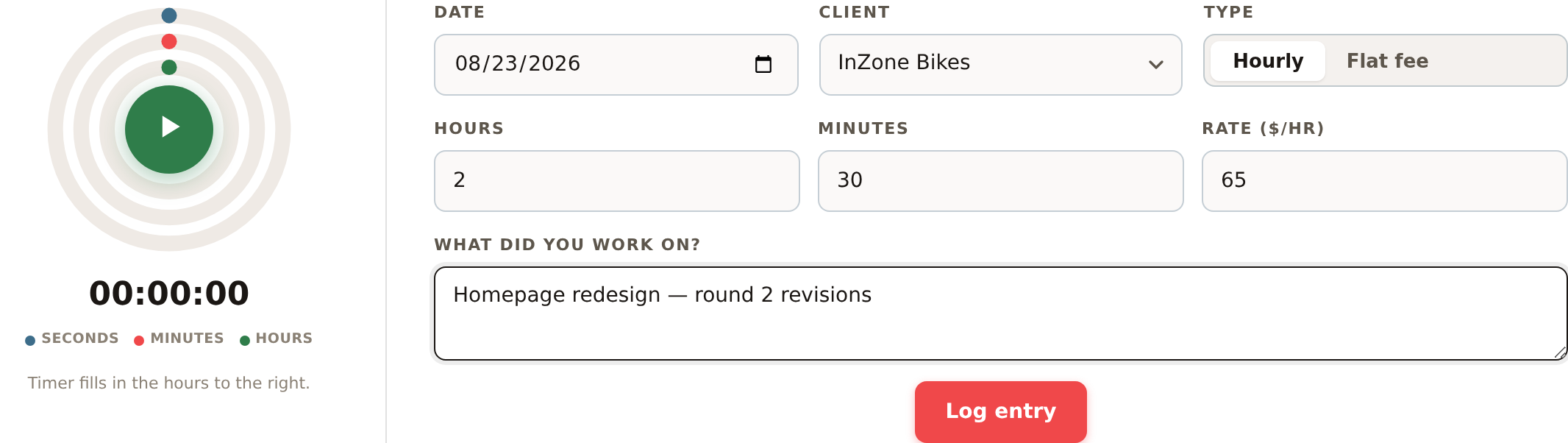
Press and hold the grip in the top-left corner to move this card to a new spot, or click the caret in the top-right to collapse it out of the way. This is where every entry starts. Pick a date and client, choose how you're billing it, and jot down what you worked on.
Set the date and client. Then choose Hourly (billed against a rate) or Flat fee (one set amount, no rate involved). Flat fee swaps the Hours/Minutes/Rate fields below for a single dollar amount.
Or just start the timer. Click the play button to time your work live instead of typing hours by hand, pausing any time. Once you've got at least a minute on the clock, Use this time drops it straight into Hours/Minutes below and switches you to Hourly automatically.
Fill in the details and log it. Hours/minutes default to your client's rate, but you can type a one-off rate for this entry only. Add a short description, then click Log entry.
Press and hold the grip in the top-left corner to move this card to a new spot, or click the caret in the top-right to collapse it out of the way. Every entry you've ever logged, in one filterable list. It's also your quick read on where you stand, and where you go back to fix a mistake.
Filter the list. Narrow it down by client, date, or invoice status, and sort it however's useful: newest first, by client, or by amount.

Check the totals. This bar always reflects whatever filters are currently applied, so it's a quick way to answer "how much was that?" for any slice of your work.

Edit or delete an entry. Click the pencil on any row to fix a typo, change the hours, or delete it entirely. Deleting always asks you to confirm twice, since it can't be undone.

Press and hold the grip in the top-left corner to move this card to a new spot, or click the caret in the top-right to collapse it out of the way. For flat-rate work billed in stages instead of by the hour: plan the fee out as milestones up front, and the app bills them for you as their dates pass.
Plan the project. Click + Project, pick the client, name it, and set the total fee and date range.
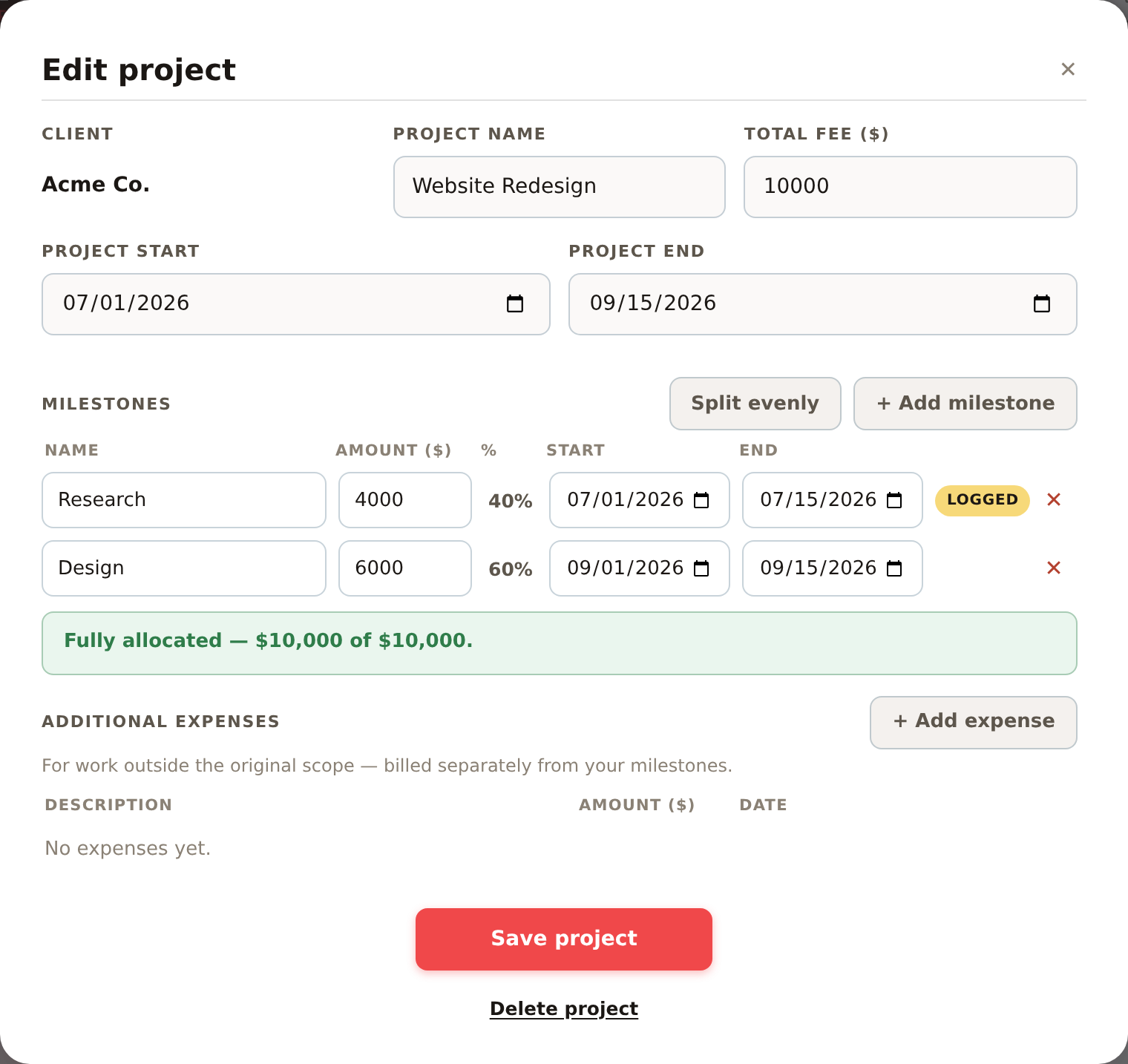
Break it into milestones. Split Amount Evenly divides the total automatically, or set custom amounts and dates per milestone. Once a milestone's end date passes, it turns into a real entry on All entries by itself, tagged Logged until you actually put it on an invoice.

Add an expense. For anything outside the original scope — an extra round of revisions, an added asset, a subscription you paid for on their behalf — add it as an expense. It logs as its own entry right away instead of waiting on a milestone date.

Track progress at a glance. Each project's row shows how much of the fee is logged so far and how many milestones are done. Milestone and extra rows both stay fully editable anytime, even after they're logged, and removing one always asks you to confirm twice.

A backup is a snapshot of everything in WorkGlass (every client, entry, invoice, and template) saved as a single file you control, completely separate from Cloud Sync. Even with Cloud Sync turned on, it's worth having your own copy: it's the one version of your data that isn't tied to your Netlify site staying up.
Click Backup. It's in the header, top right, next to the sync status pill (or inside Menu on a phone). It downloads a file named something like workglass-backup-2026-08-24T1652.json.
Find it in your downloads. Like any file your browser downloads, it lands wherever that's set to go, usually your Desktop or Downloads folder. Worth moving it somewhere you'll actually find it again later, like a dedicated backups folder.
Do it regularly. Once a week, or right after a big batch of entries or a new invoice, is a good habit. It only takes a second, and it's cheap insurance against a lost device, a wiped browser, or a mistake nothing else can undo.
If you ever need to roll back to an earlier snapshot.
Open Settings (the gear icon in the header, or inside Menu on a phone) and click the Restore tab.
Click Restore from backup… and choose the JSON file you saved earlier.

I've spent my career on the creative side, first as an Art Director, then a Creative Director, and now running my own consulting and freelance design practice. Somewhere along the way, keeping track of my own hours and invoices got just as important as the work itself, and I could never find a tool that felt like it was actually built for how people work.
So I built WorkGlass — first just for me, then as something I wanted to share. It's a genuine passion project: my hope is that it gives you back a little time and headspace, so you can spend less of it wrestling with spreadsheets and more of it doing the work you love most.
Greg Schultz, Creative Director / www.gschultzdesign.com
Last updated September 1, 2026.
By accessing or using WorkGlass (the "App"), you agree to the terms below. If you don't agree to them, please don't use the App.
WorkGlass is provided on an "as is" and "as available" basis, without warranties of any kind, express or implied, including any implied warranty of merchantability, fitness for a particular purpose, or non-infringement. GSchultzDesign LLC does not warrant that the App will be uninterrupted, error-free, secure, or available at all times.
WorkGlass runs on third-party infrastructure — including hosting and login services provided by Netlify — that GSchultzDesign LLC doesn't own or control. GSchultzDesign LLC is not responsible for outages, bugs, or data loss caused by those or any other third party, including if a provider changes its service, is acquired, or shuts down. GSchultzDesign LLC does not guarantee that your data (clients, entries, invoices, and templates) will always be available, accurate, or recoverable.
You're solely responsible for keeping your own backups of anything you store in WorkGlass. Click Backup in the header any time to download a full copy of your data — use it regularly. GSchultzDesign LLC is not liable for any loss, corruption, or unavailability of your data, however it happens.
To the fullest extent the law allows, GSchultzDesign LLC and its owner are not liable for any indirect, incidental, special, consequential, or punitive damages, or any loss of data, revenue, or business, arising from your use of (or inability to use) the App — even if advised such damages were possible. GSchultzDesign LLC's total liability arising from or related to the App will not exceed one hundred dollars ($100 USD).
WorkGlass helps you track time and generate invoices — it doesn't provide legal, tax, accounting, or financial advice, and nothing in the App should be relied on as such. You're responsible for reviewing every invoice, rate, and total it generates before you send it or rely on it.
GSchultzDesign LLC may modify, suspend, or discontinue WorkGlass, in whole or in part, at any time and for any reason, without notice and without liability — including if its owner is no longer able to run or support it. WorkGlass isn't guaranteed to be available indefinitely and shouldn't be the only place your business records live (see "Back up your own data" above). Settings → Backup also offers a downloadable offline copy of the App itself, which you can keep and run on your own computer independent of GSchultzDesign LLC or any hosting provider — see that section for what does and doesn't come with it.
You agree to use WorkGlass only for lawful purposes and to be responsible for the accuracy of what you enter, including client information and invoice details. You agree to indemnify and hold harmless GSchultzDesign LLC, its owner, and any affiliates from claims, damages, or expenses (including reasonable legal fees) arising from your use of the App or a violation of these terms.
GSchultzDesign LLC may update these terms from time to time. Continuing to use the App after a change is posted here means you accept the revised terms.
These terms are governed by the laws of the State of Florida, without regard to its conflict-of-laws rules, and any dispute will be handled in the state or federal courts located in Florida. If any part of these terms turns out to be unenforceable, the rest stays in effect.
Questions about these terms can be sent through www.gschultzdesign.com.
Log in to see your hours, clients, and invoices.
Don't have an account yet? Get started, it's free while we're testing.
Invoices from this period that haven't been marked paid yet.
 Time • Tracked • Clearly
WorkGlass is time tracking and invoicing built for people who'd rather be making things than doing math.
Here's a quick look at how it works.
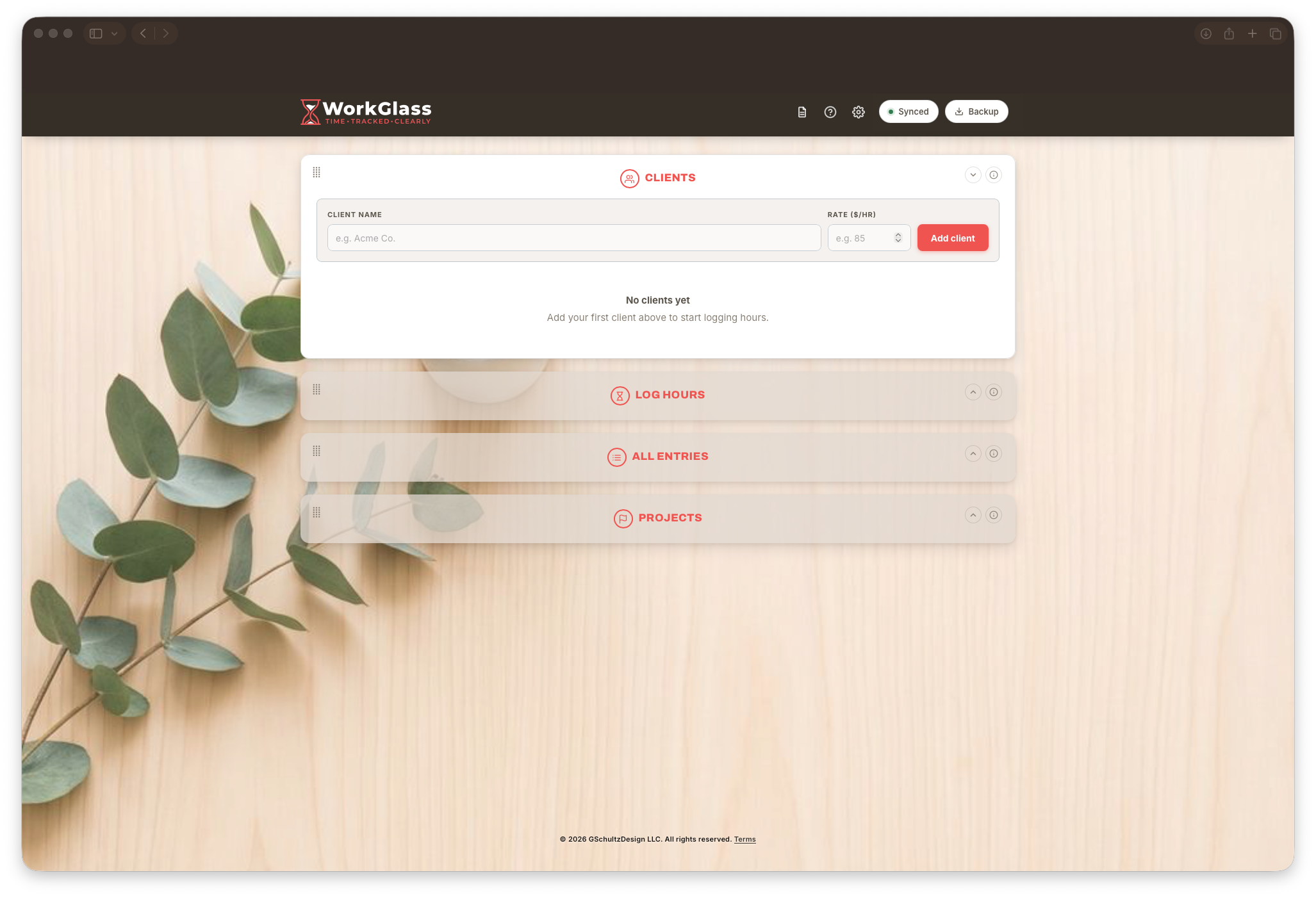
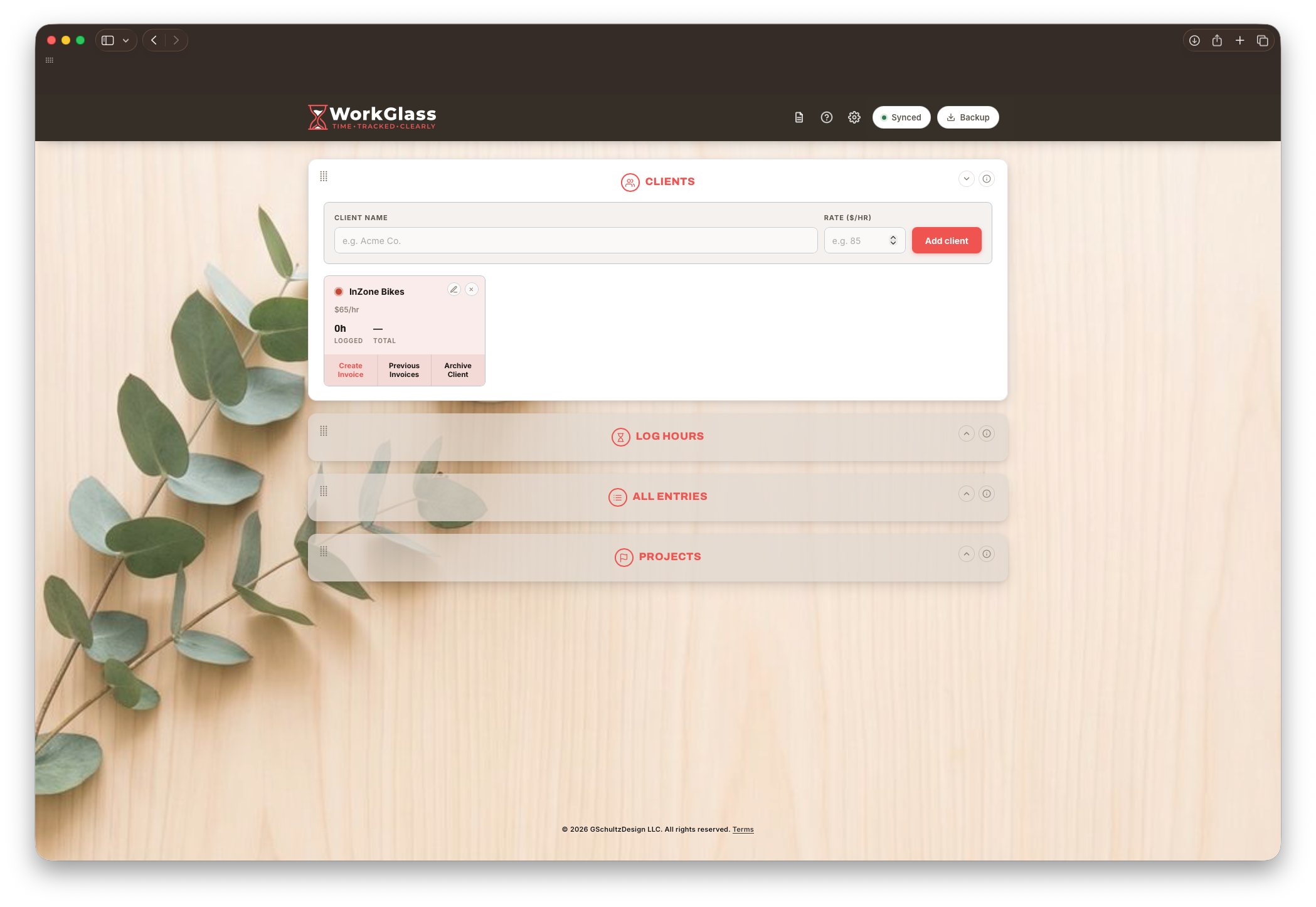
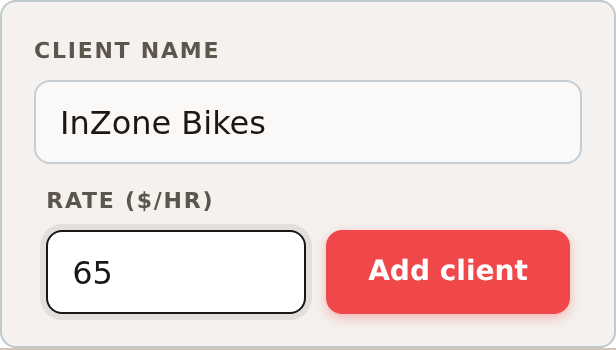
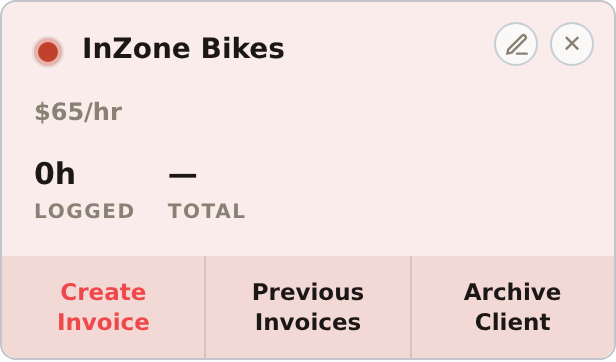
Type a name and hourly rate, then click Add client. You'll get a client card that tracks their logged hours and total at a glance, and their color follows them everywhere — entries, invoices, all of it.
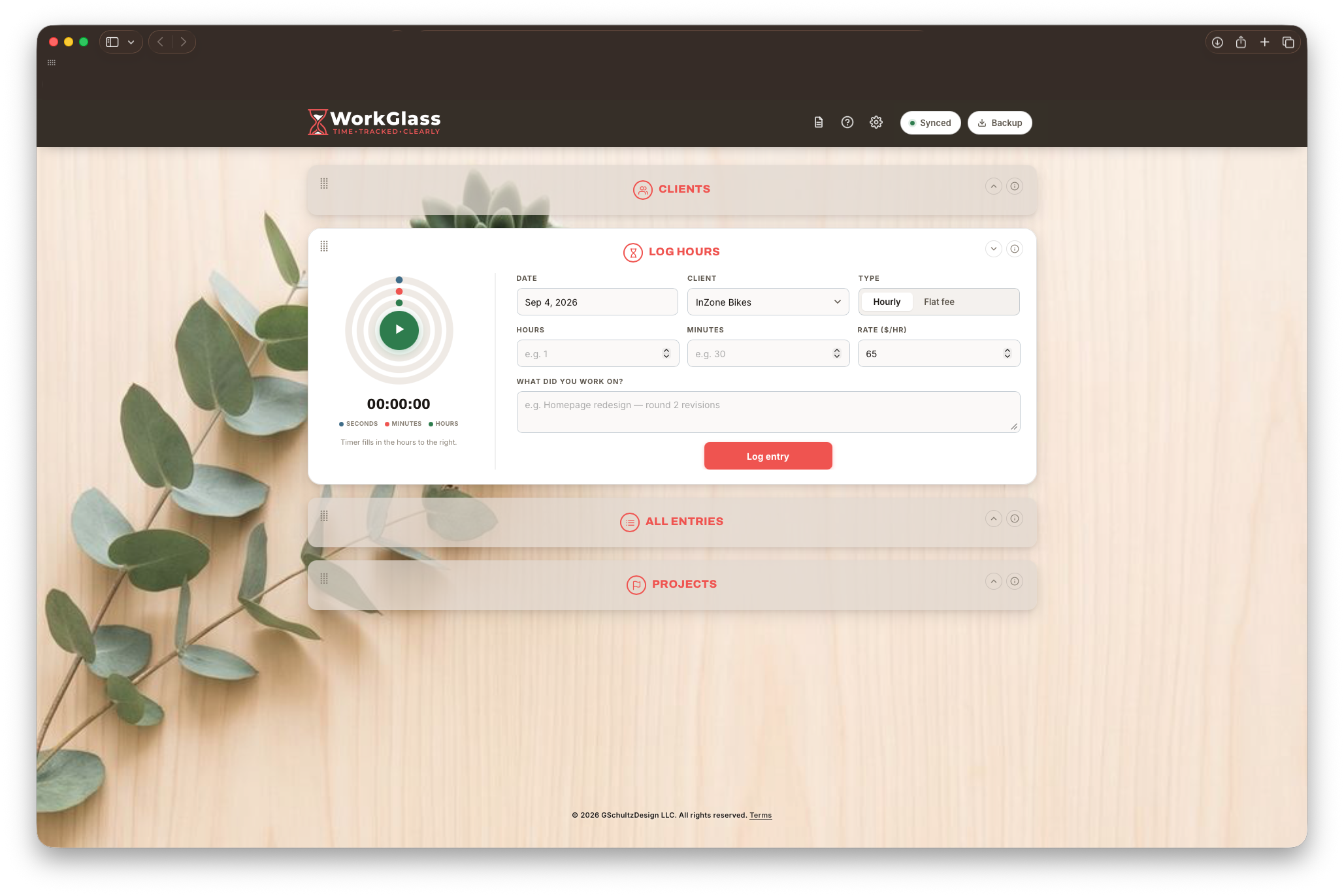
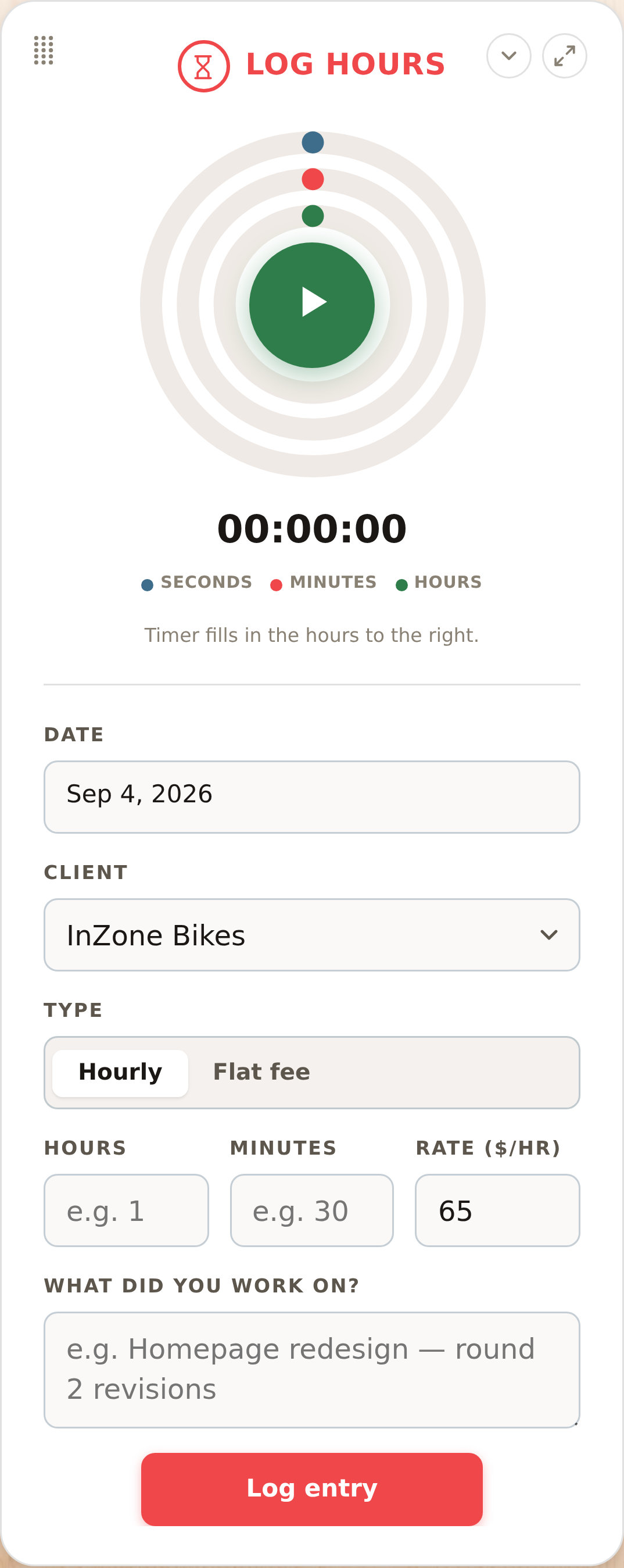
Fill in the time and what you worked on, or click the Timer and let it fill the hours in for you. Once you click Log entry, head to the All entries card — it keeps track of everything you've logged.
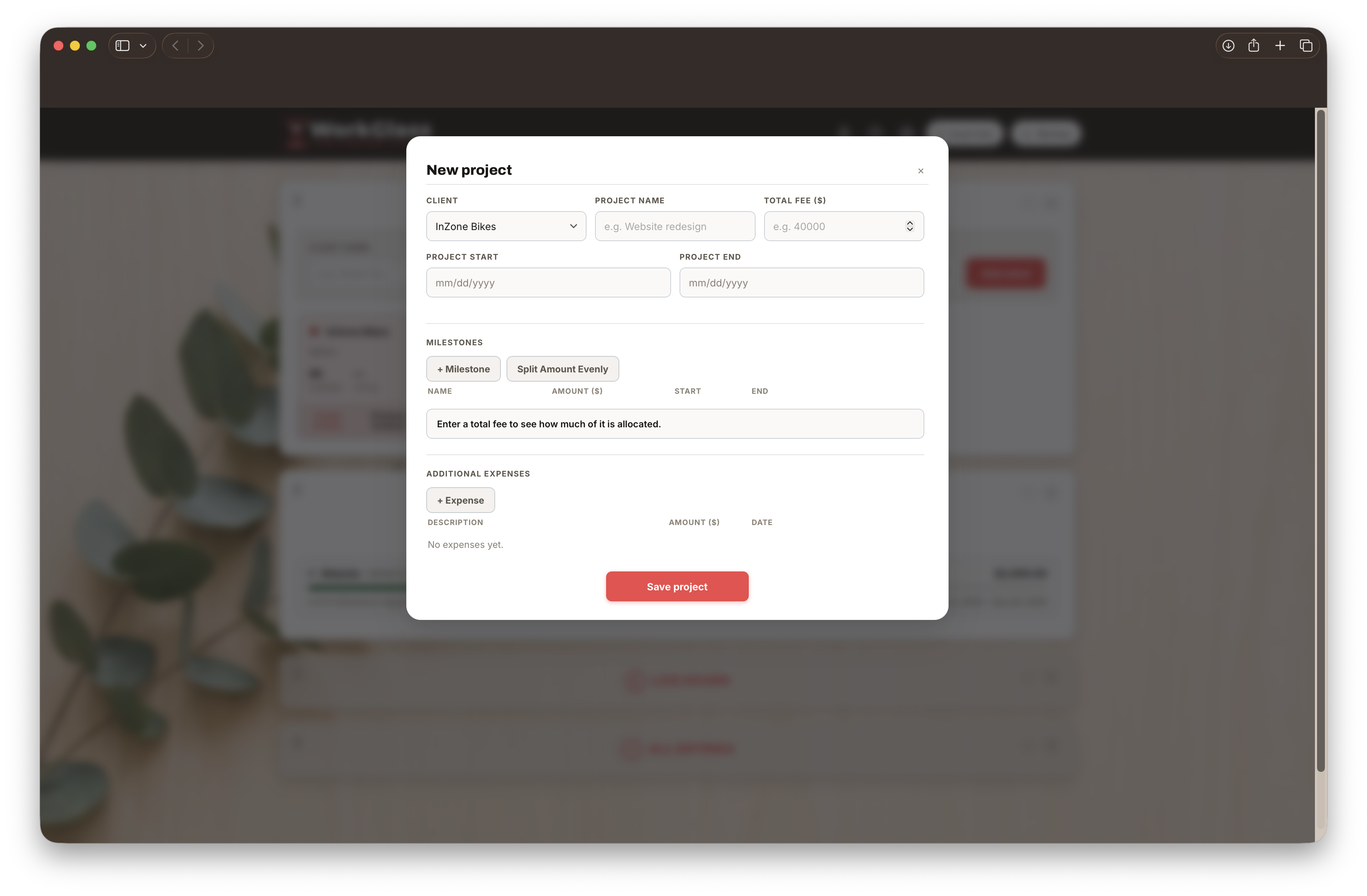
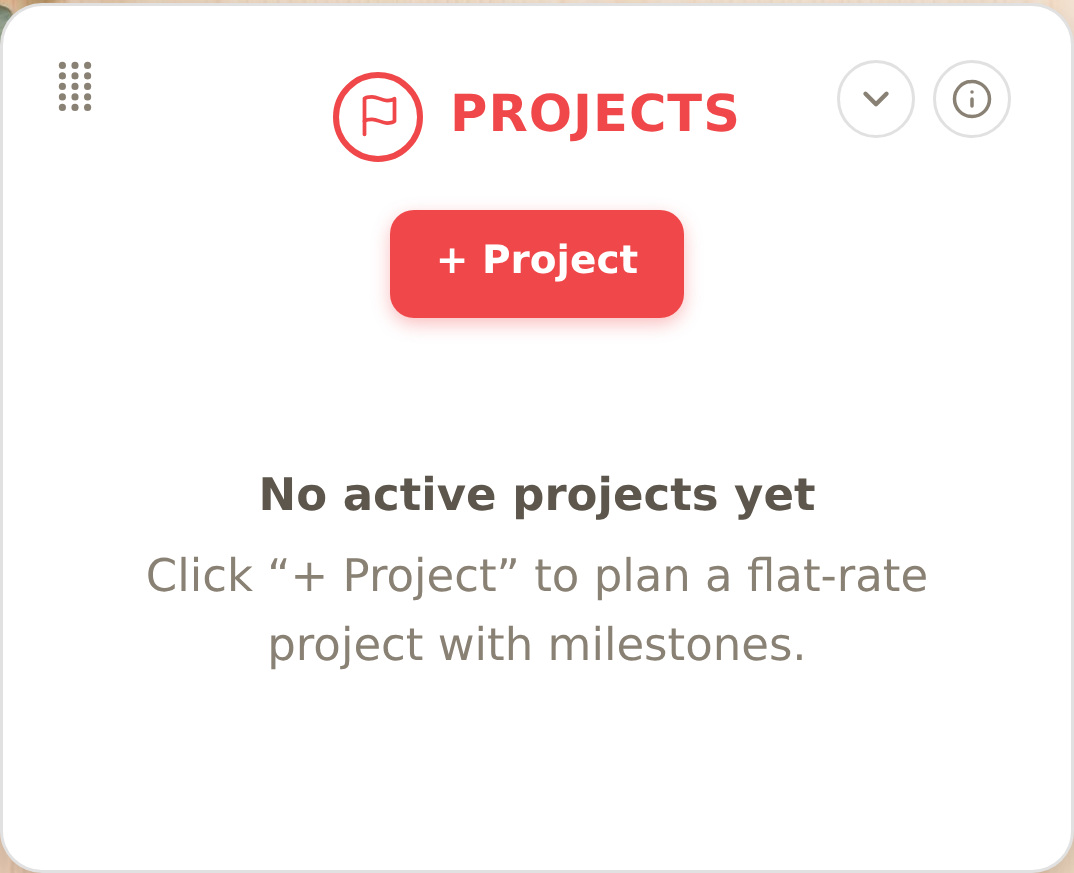
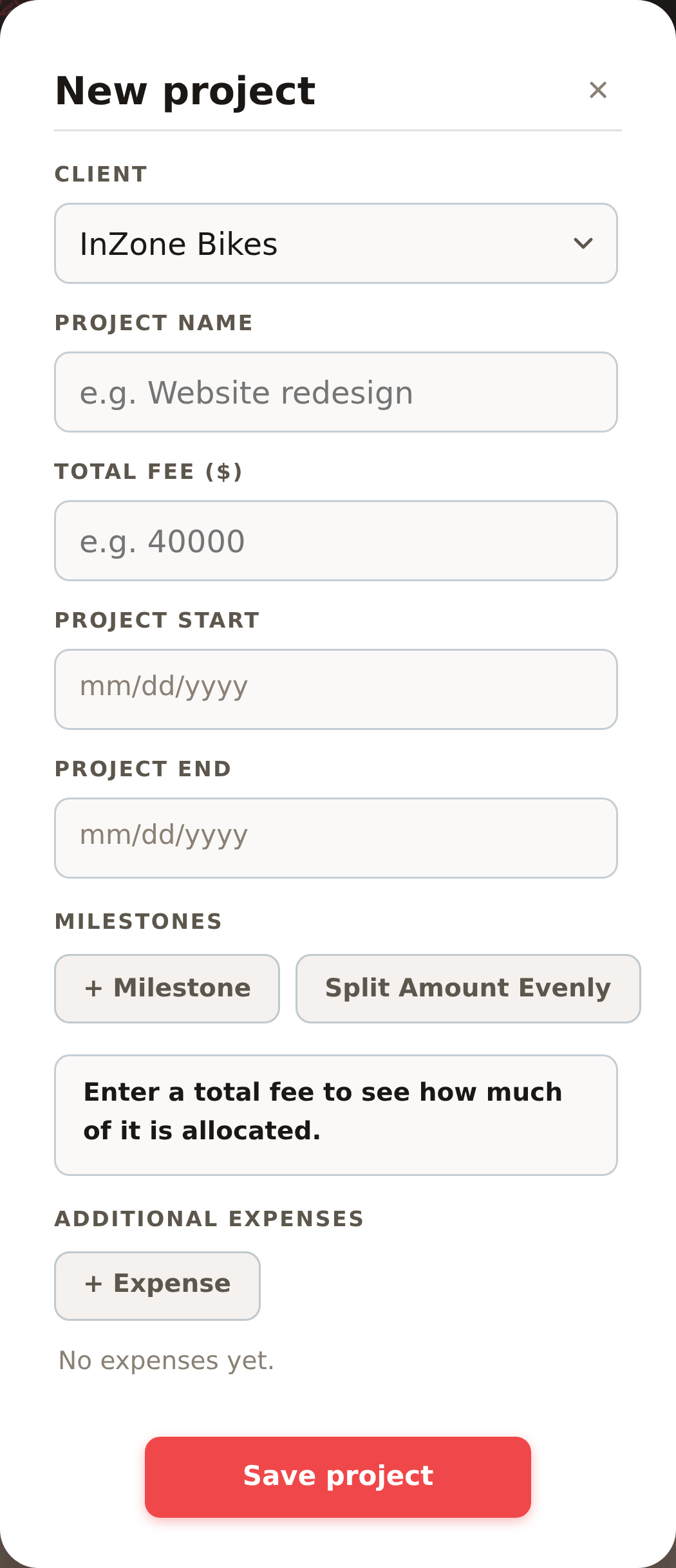
For flat-rate work billed in stages — set the fee and dates, then click Save project. Milestones bill themselves as their dates pass.
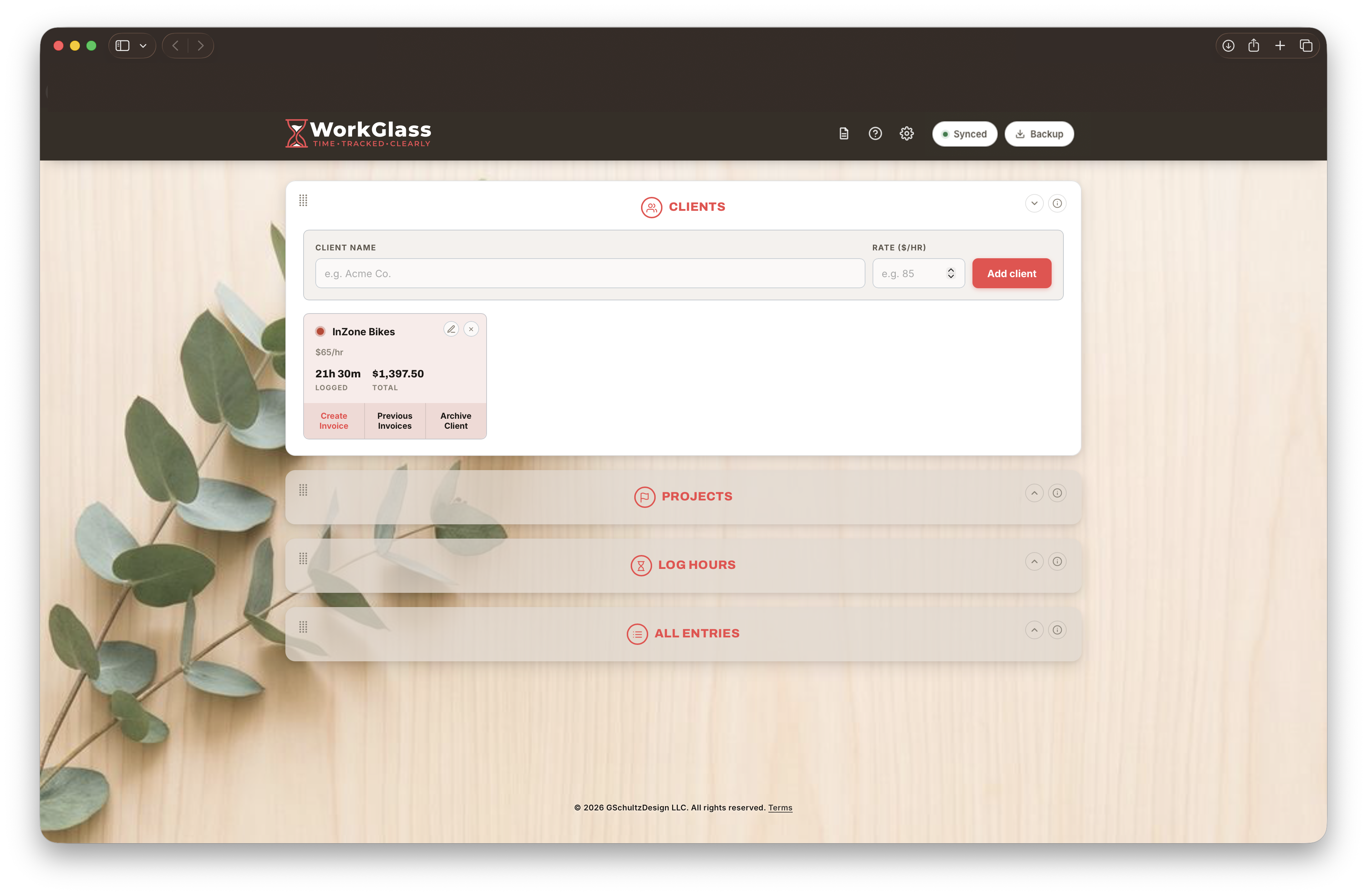
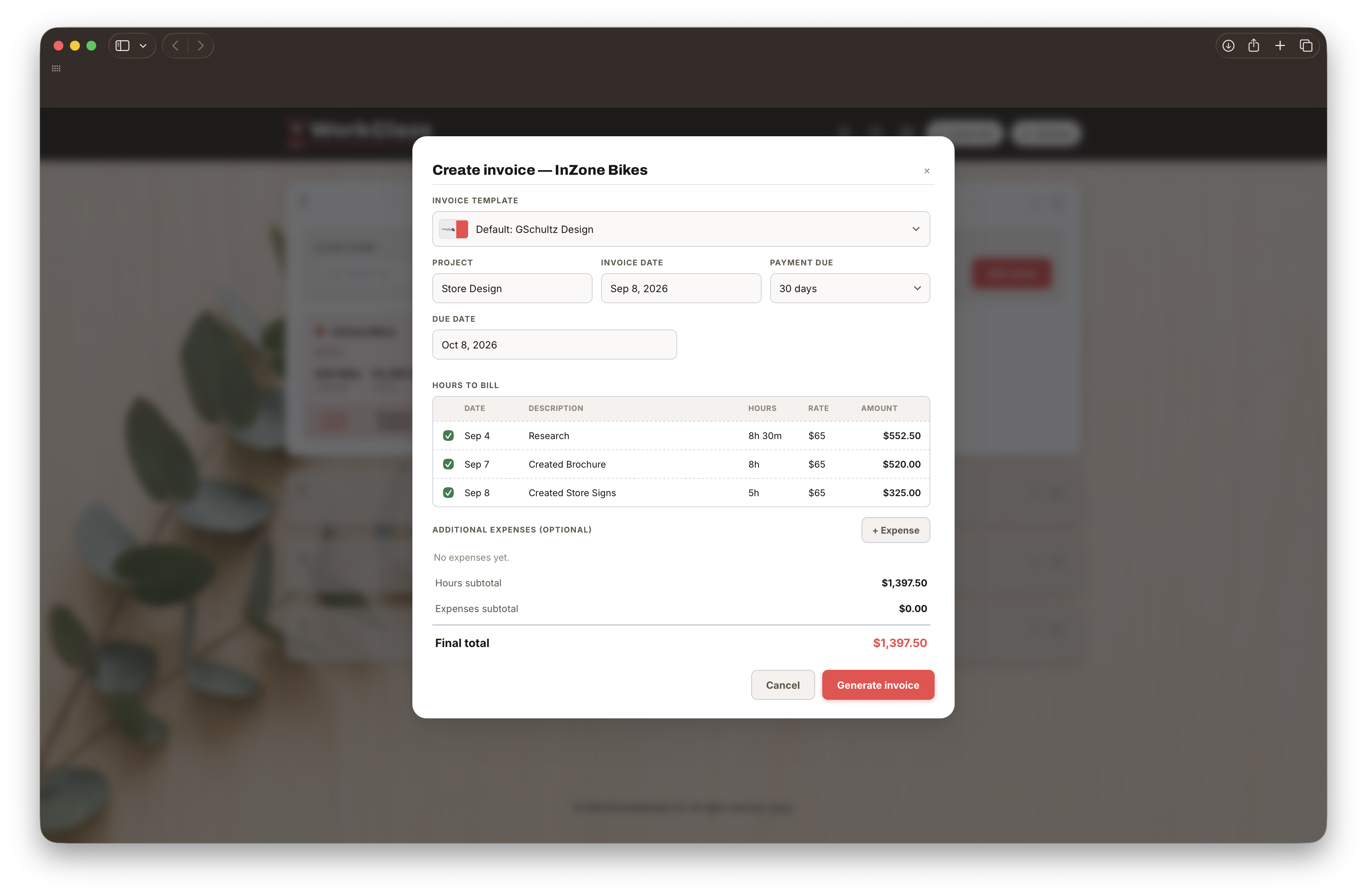
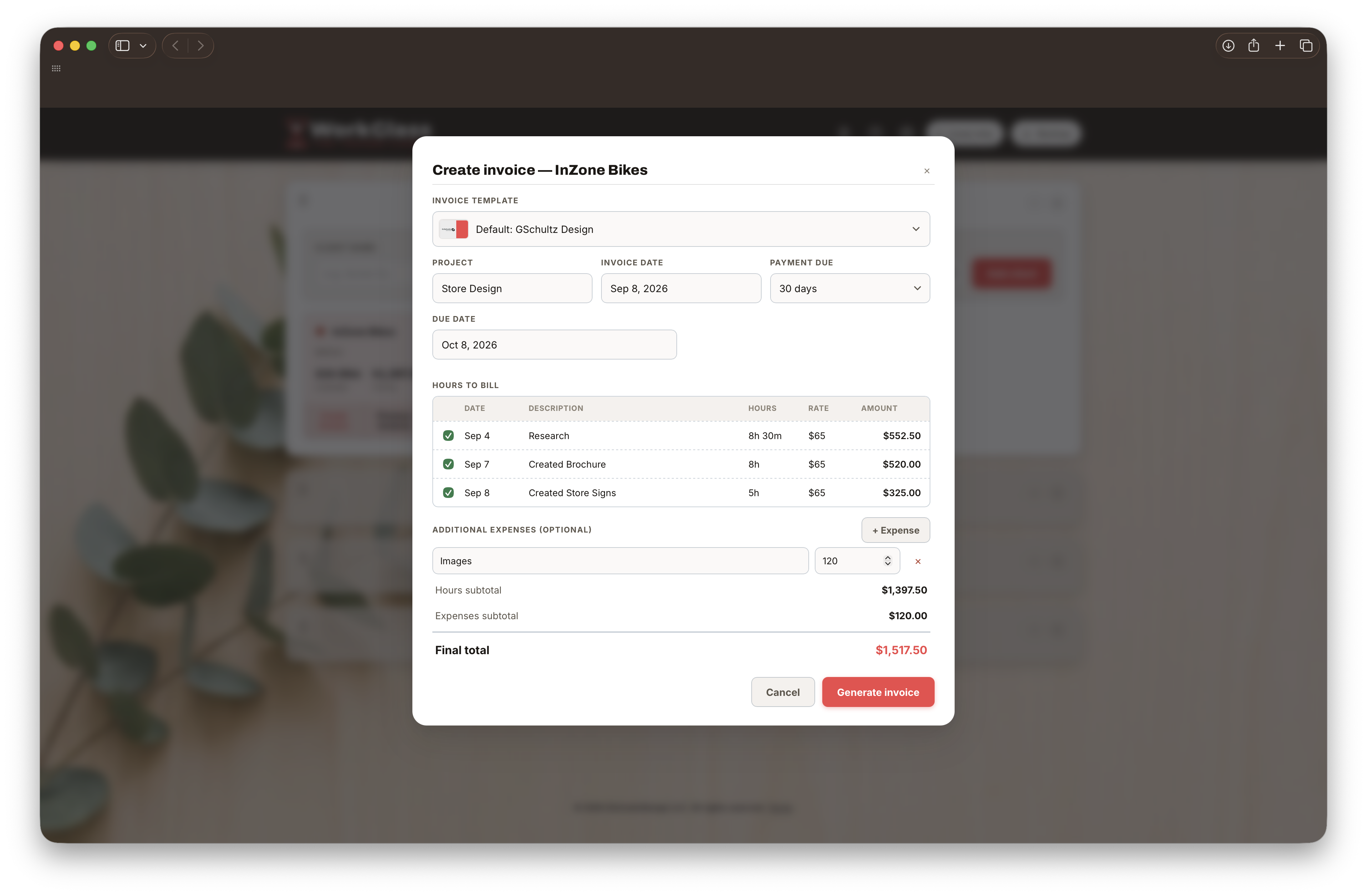
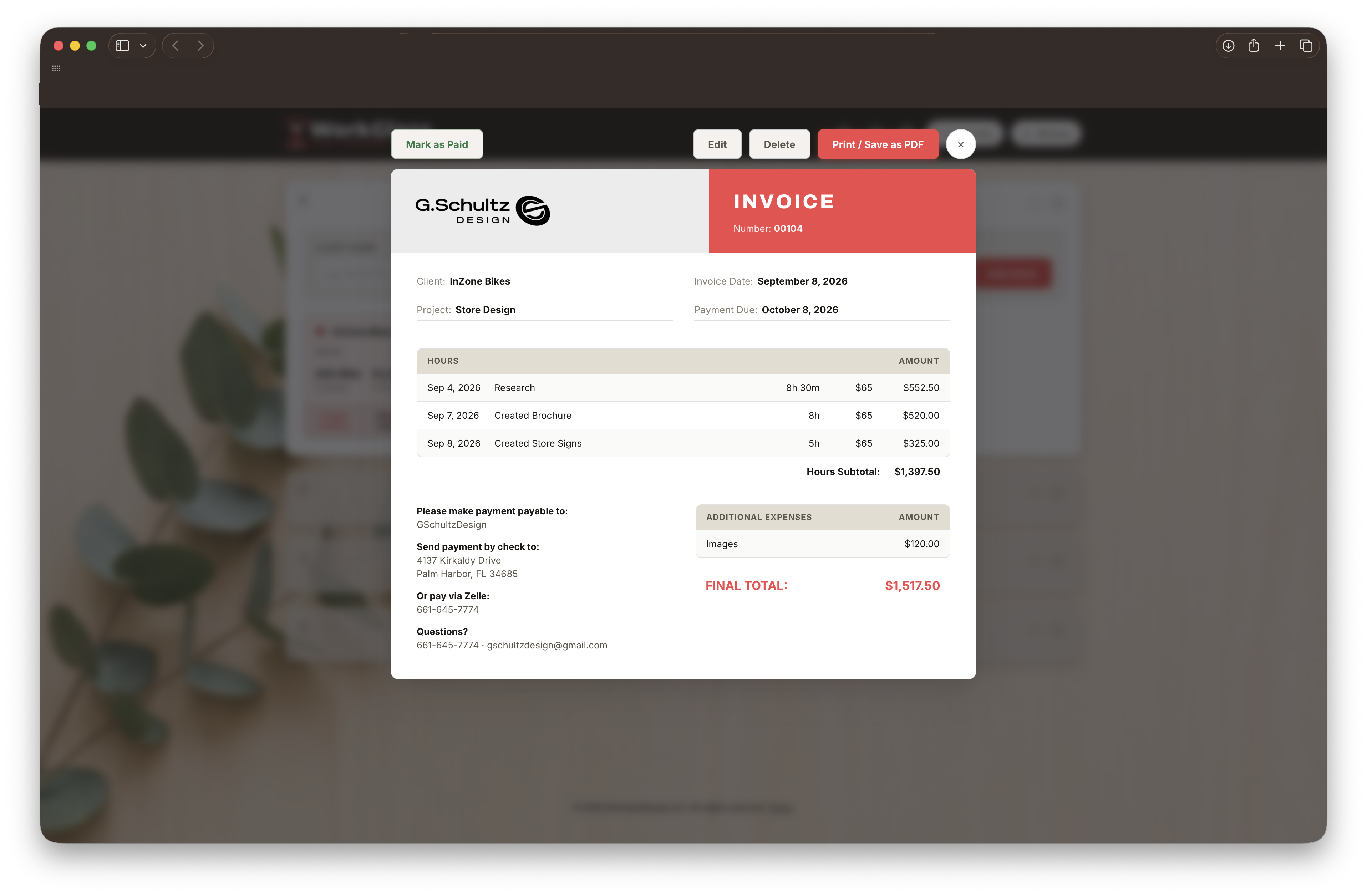
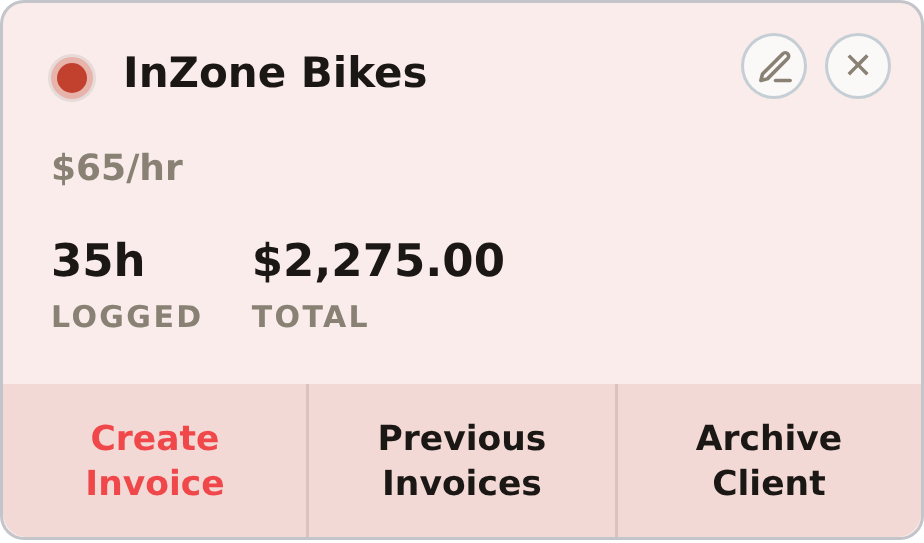
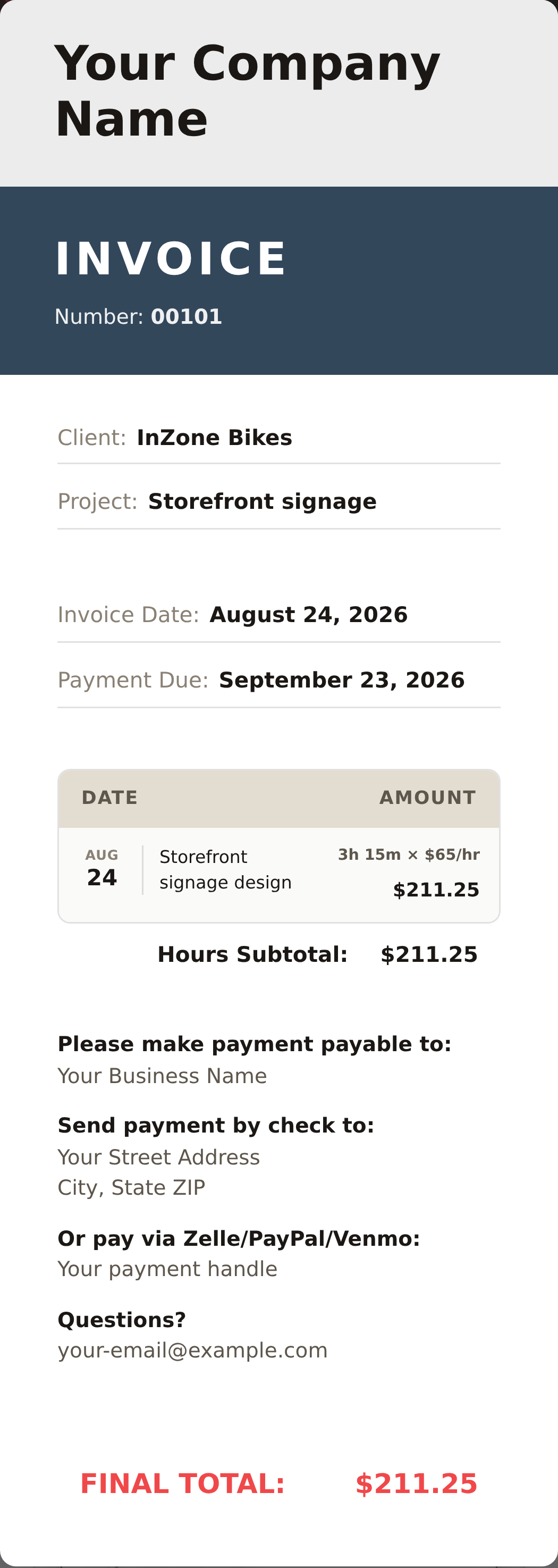
When you're ready to bill, click Create Invoice right from the client tile — a polished invoice in just a couple of clicks.
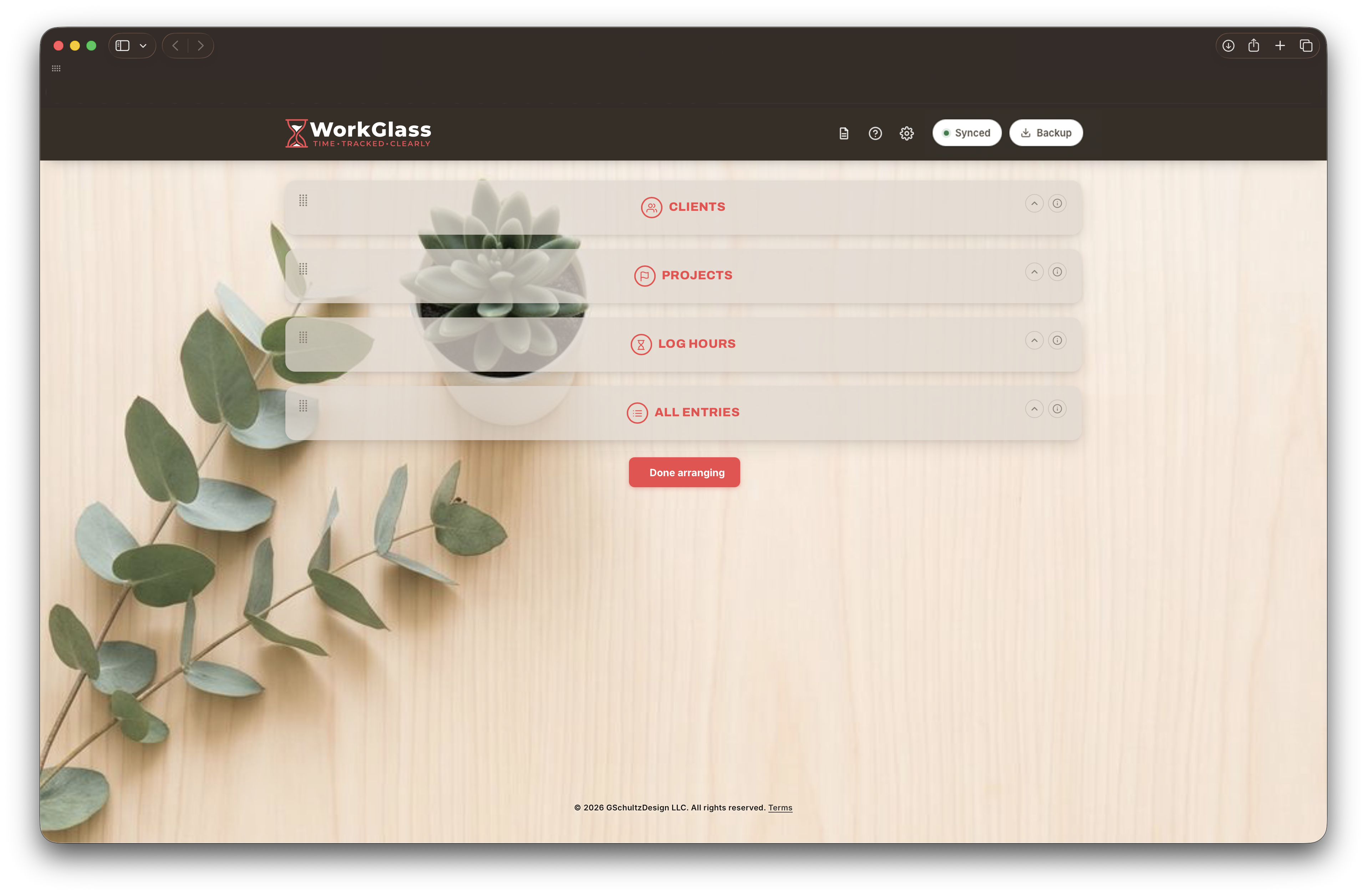




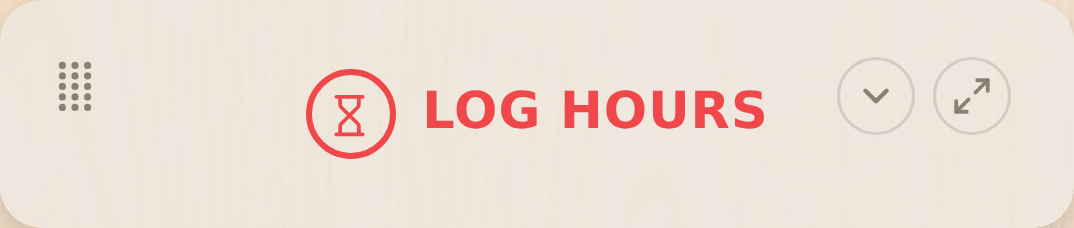
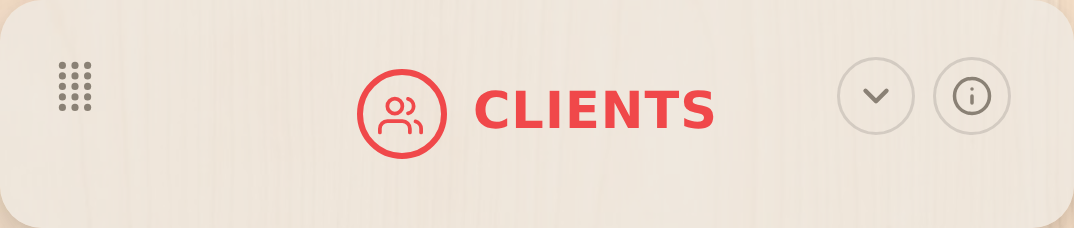
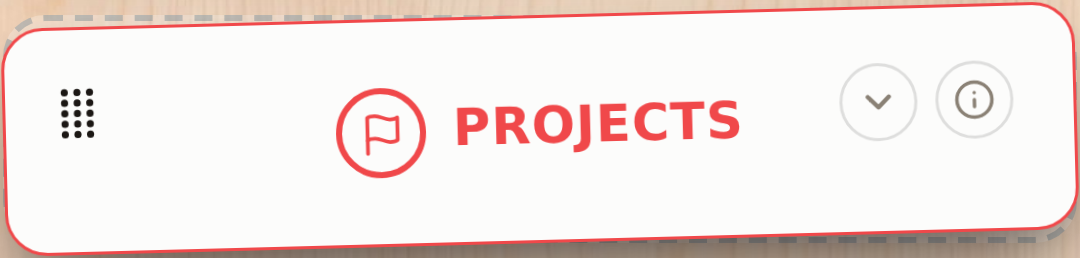
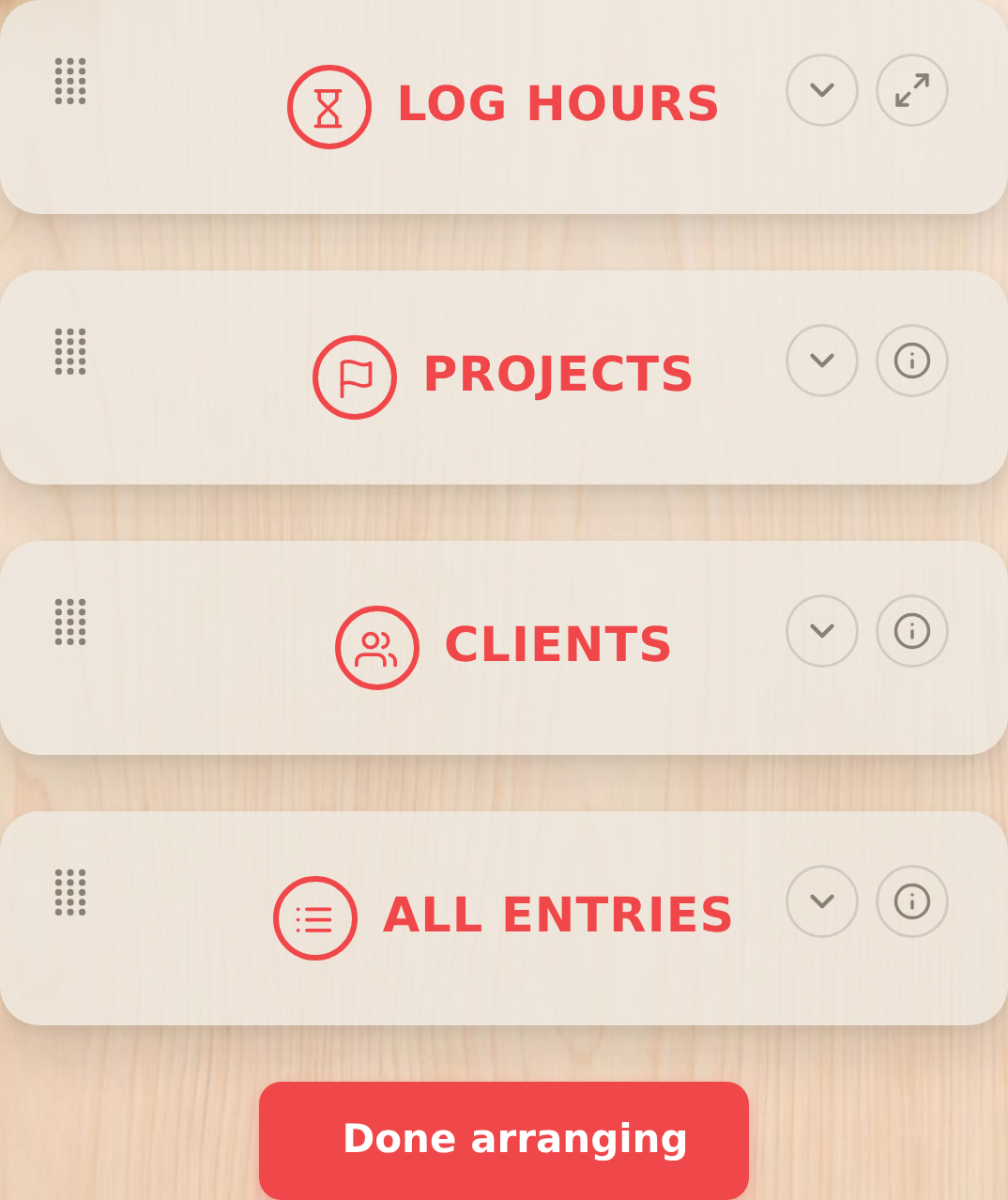
Press and hold any card's grip — top-left corner — until it glows. Every card collapses into a bar, with yours lifted free so it's obvious what you're moving, then drag it into place. Click Done arranging (or press Escape) when you're set.

 ✓
✓

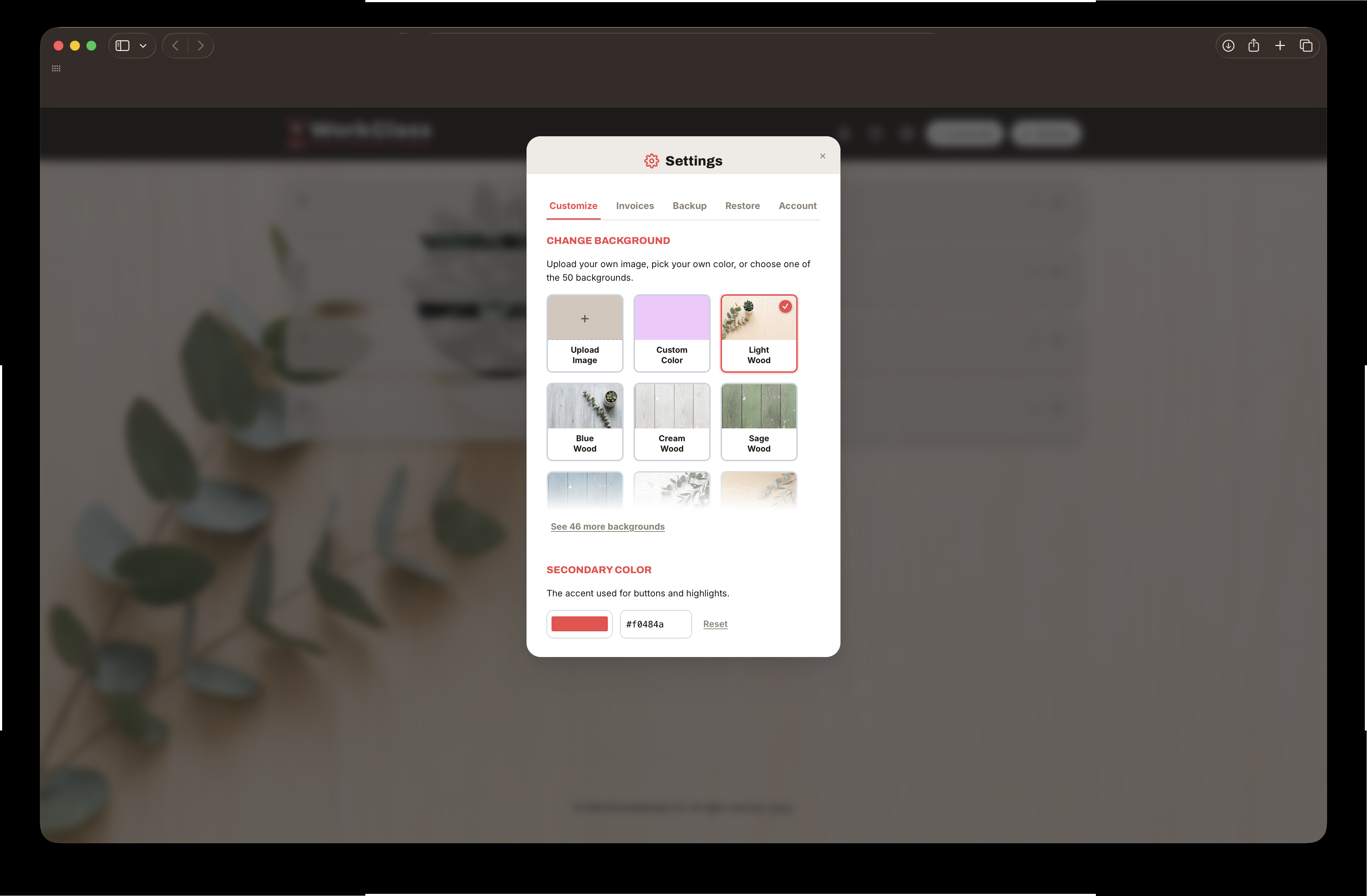
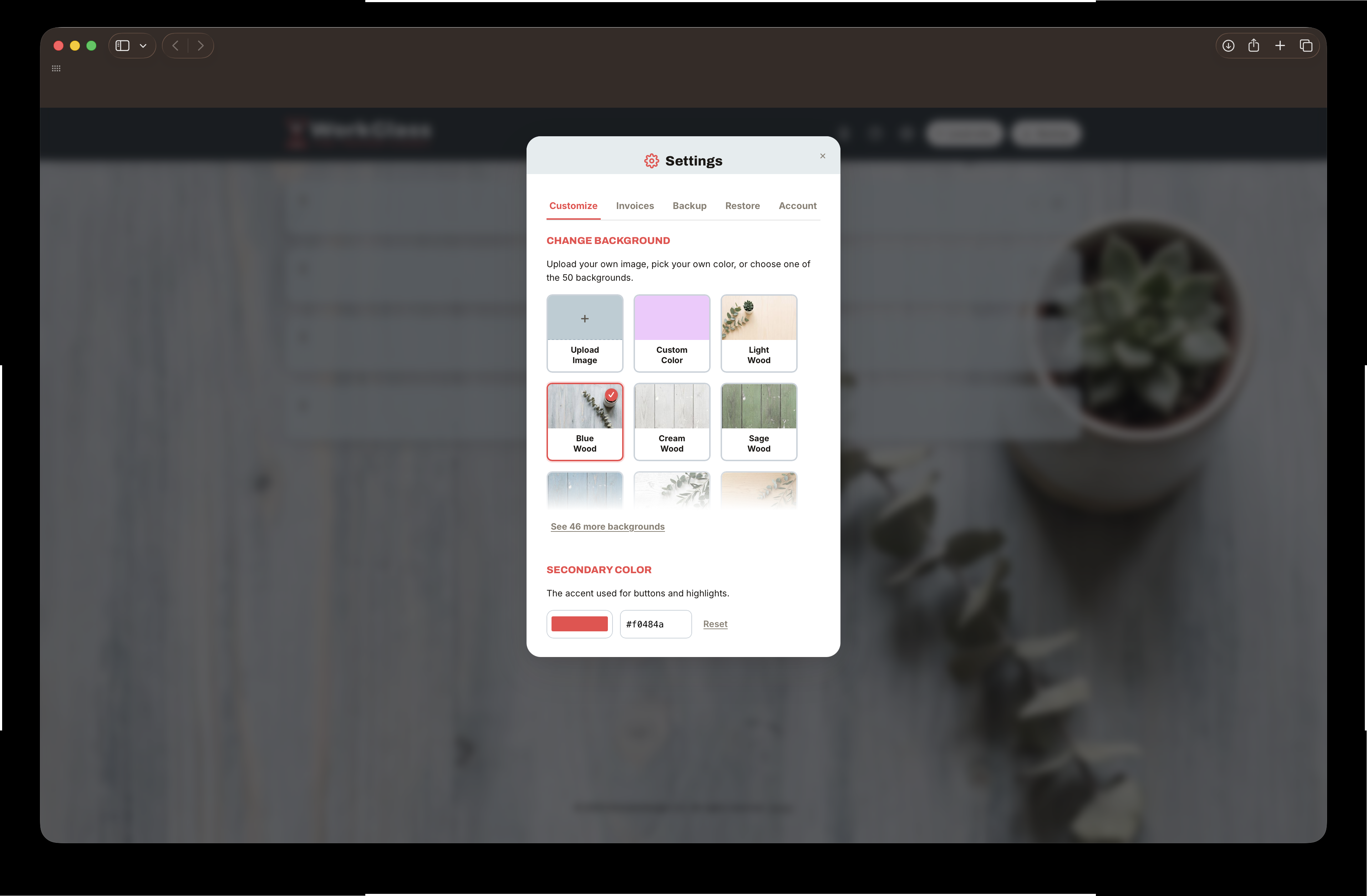
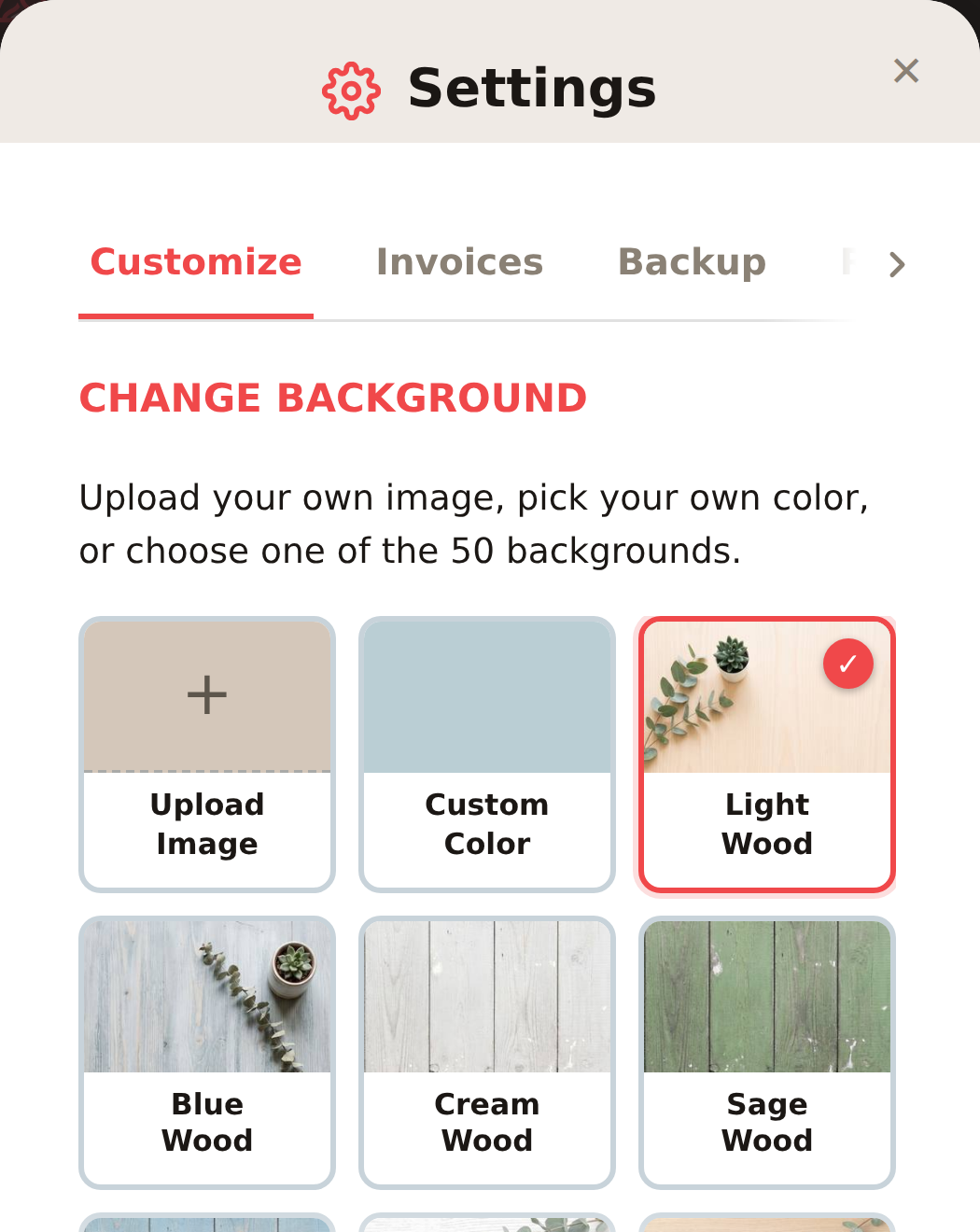
Pick a photo, solid color, or your own hex code for the dashboard background — right from Settings → Customize.
Upload your own image, pick your own color, or choose one of the 50 backgrounds.
The accent used for buttons and highlights.
Different logos, colors, or payment info for different situations — up to 6. You'll pick one each time you create an invoice.
The next invoice you create will be #00101. Deleting the most recent invoice frees its number back up automatically; deleting an older one just leaves a gap.
WorkGlass checks whenever you open it — if it's been at least this long since your last backup, it quietly downloads a fresh one for you, no clicking required.
Last automatic backup: never yet
Prefer to stay in control? WorkGlass shows a friendly reminder in the app instead of downloading anything on its own — you click Backup when you see it.
Download the app itself — not just your data — as a .zip you can keep for peace of mind. Unzip it and open index.html in any browser to run WorkGlass right from your own computer, any time, no internet or account needed. It's a snapshot as of today, so it won't get future updates, and it runs entirely on its own — no login, no cloud sync, nothing shared with this device or any other. Use Restore from backup… (Restore tab) inside it to load in a backup file. A nice one to have tucked away — whatever comes up down the road, you'll always have a working copy of WorkGlass ready to go.
Load a JSON file downloaded with the Backup button. This replaces every client, entry, invoice, and template currently in the app — including the synced cloud copy — with what's in that file.
You're logged in as …. Your hours, clients, and invoices are private to this account and saved to the cloud automatically.
Show a logo, or just your name if you don't have one.
The left and right blocks at the top of the invoice.
Shown bottom-left on every invoice. The first line of each group appears bold — leave a blank line between groups.